Free Online Signature Creator
Create a professional handwritten signature in seconds. Just draw with your mouse, finger, or stylus — the pen responds to your speed, producing natural thick-and-thin strokes like a real pen on paper. When you're happy, download your signature as a transparent PNG for documents and emails, or as a scalable SVG for any size.
Natural pen feel
Velocity-sensitive strokes that get thinner when you move fast and thicker when you slow down, just like writing with ink.
Transparent export
Download as PNG with a transparent background — drop it straight into documents, PDFs, or email signatures.
Vector SVG output
Export as SVG for perfectly crisp signatures at any size. Ideal for letterheads, contracts, and print.
Works everywhere
Phone, tablet, or desktop. Draw with your finger, Apple Pencil, stylus, or mouse. No app to install.
Tip: use your phone turned sideways for the most natural signature.
Famous Signatures Through History
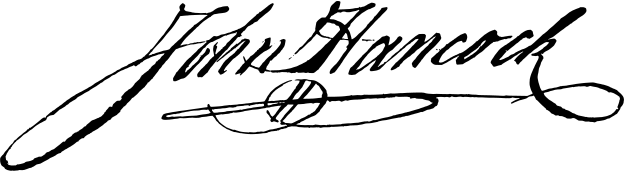
John Hancock 1776
Signed the Declaration of Independence so large that "John Hancock" became American slang for "signature." Legend says he wanted King George III to read it without spectacles.
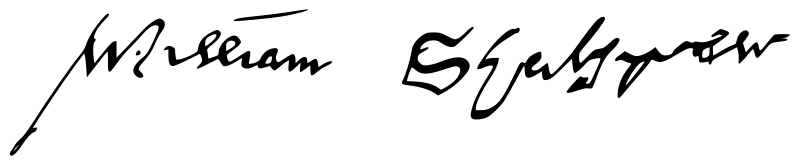
William Shakespeare c. 1616
Only six confirmed signatures survive — all on legal documents, with the surname spelled differently almost every time. Variations include "Shakp," "Shakspe," and "Shakspeare."
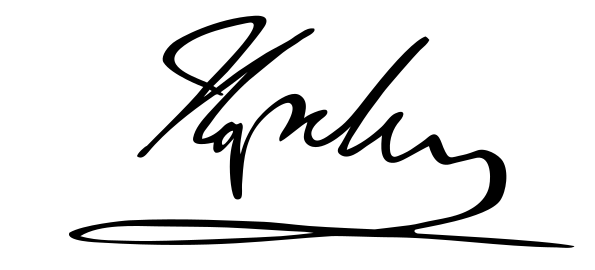
Napoleon Bonaparte c. 1804
His signature visibly deteriorated over his career — from a bold "Bonaparte" during triumphs to a childlike scrawl during his final exile on Saint Helena.
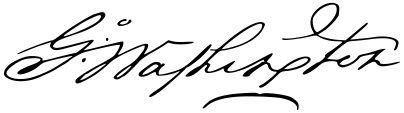
George Washington 1787
His signed copy of the Constitution sold for $9.8 million in 2012 — the most expensive autograph ever sold at auction.
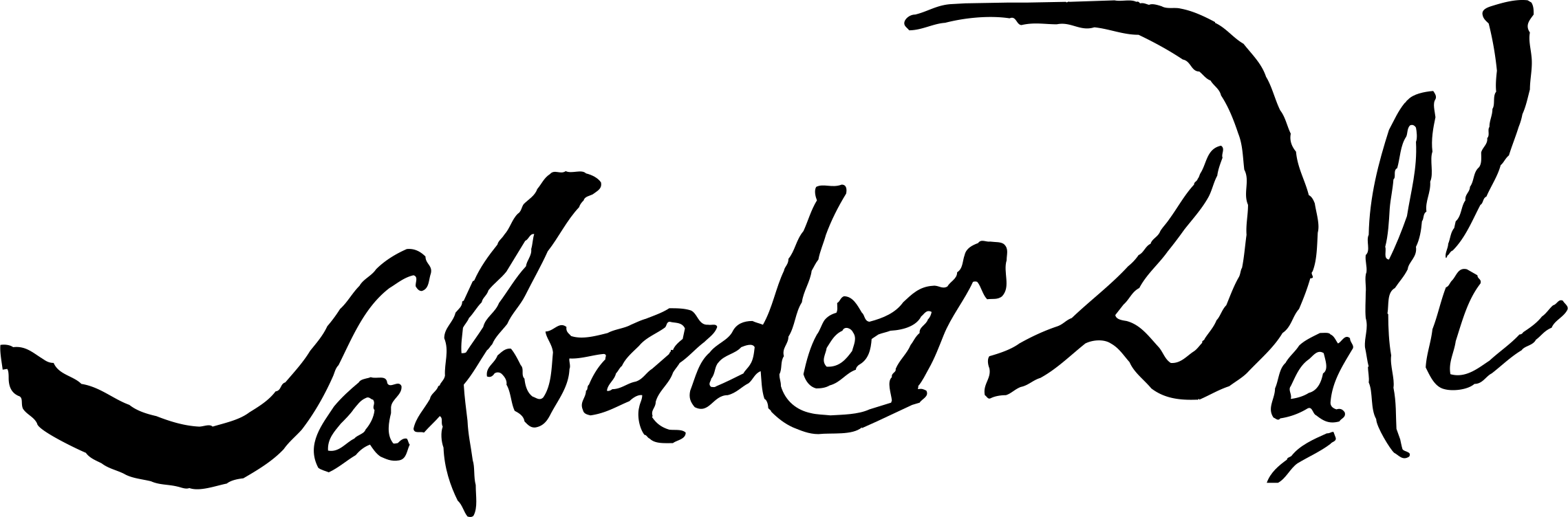
Salvador Dalí c. 1970
Reportedly signed thousands of blank sheets, contributing to a massive forgery problem. Some estimates claim up to 350,000 sheets, though the exact number is disputed. Fake Dalí art remains rampant to this day.
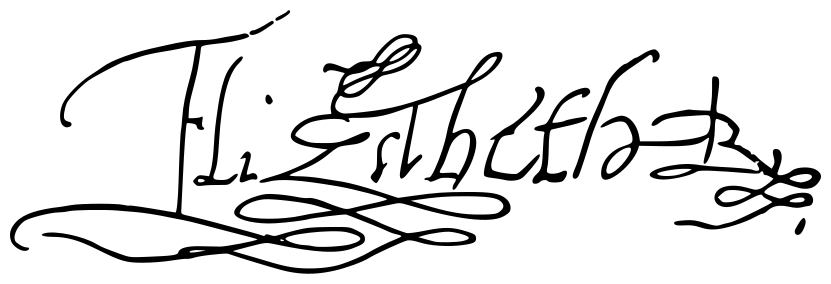
Elizabeth I c. 1580
Her enormous, elaborately flourished "Elizabeth R" could span several inches. The ornate complexity also served as an early anti-forgery measure.
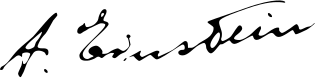
Albert Einstein c. 1935
His autograph is among the most forged in history. Authentic ones sell for $20,000–$75,000, and he reportedly charged $1 per autograph for charity in the 1930s.

Nikola Tesla 1900
Tesla's elegant, slanted script reflected his meticulous nature. He held around 300 patents worldwide and voluntarily released Westinghouse from a royalty contract that could have been worth millions.
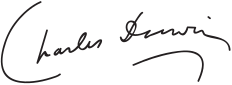
Charles Darwin c. 1859
His handwriting deteriorated over decades of chronic illness. Darwin exchanged over 15,000 letters with some 2,000 correspondents worldwide — one of the richest scientific correspondences ever preserved.

Marie Curie c. 1911
She coined the term "radioactive" — and her personal papers are still so radioactive they must be kept in lead-lined boxes. Visitors to France's Bibliothèque nationale must sign a liability waiver to view them.
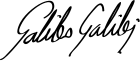
Galileo Galilei c. 1620
Surnames were optional in Renaissance Italy, though Galileo signed both "Galileo" and "Galileo Galilei" on various documents. His manuscripts now reside in Florence's National Central Library.
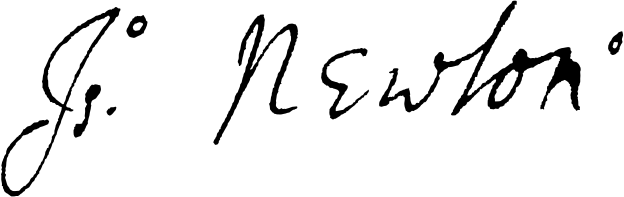
Isaac Newton c. 1700
As Warden and later Master of the Royal Mint, Newton personally prosecuted counterfeiters — conducting over 100 cross-examinations and sending 28 to the gallows.
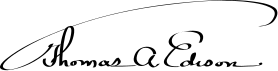
Thomas Edison c. 1900
Held 1,093 US patents — a record that stood for over 70 years. Edison's archive comprises some 5 million pages, with Rutgers University's ongoing project making key documents available online.

Alexander Graham Bell c. 1880
Bell's telephone patent — filed on Valentine's Day 1876 — is considered the most valuable patent ever issued. It beat a rival claim by Elisha Gray by mere hours.
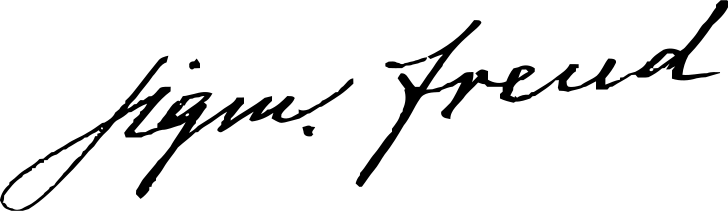
Sigmund Freud c. 1920
Graphologists describe his handwriting as passionate and sweeping — full of ink-filled strokes and untamed energy. His prolific correspondence fills thousands of letters across nearly 600 correspondents.
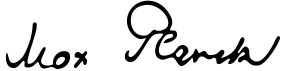
Max Planck c. 1920
The father of quantum theory had a measured, elegant hand. Awarded the 1918 Nobel Prize, Planck's autographs are rare — much of his personal archive was destroyed during the bombing of Berlin in 1944.

Ludwig van Beethoven c. 1815
His increasingly erratic handwriting mirrors his progressive deafness. A single signed letter sold at Heritage Auctions for over $275,000 in 2020.
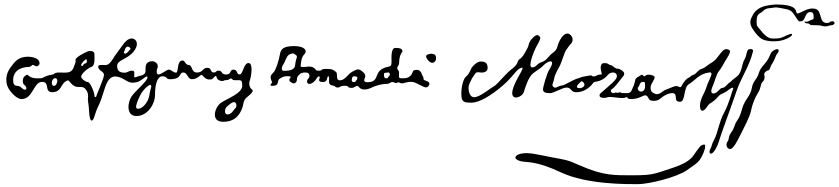
Wolfgang Amadeus Mozart c. 1785
Mozart's playful signature often included musical flourishes. He composed over 600 works, and a signed manuscript page can fetch over $300,000 at auction.
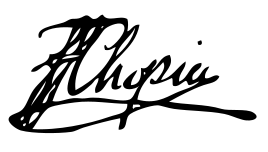
Frédéric Chopin c. 1840
His graceful signature matched his delicate compositions. Chopin requested that his heart be removed after death — it's preserved in a pillar of Warsaw's Holy Cross Church.
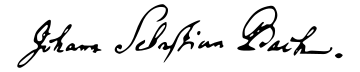
Johann Sebastian Bach c. 1740
Bach embedded his name musically — B-A-C-H corresponds to B♭-A-C-B♮ in German notation, a motif he wove into his final, unfinished fugue.
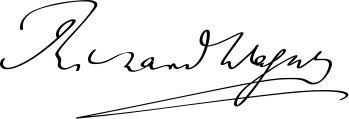
Richard Wagner c. 1870
Wagner's bold, sweeping autograph matched his larger-than-life personality. He commissioned his own opera house at Bayreuth, built to his exacting vision — still in use today.
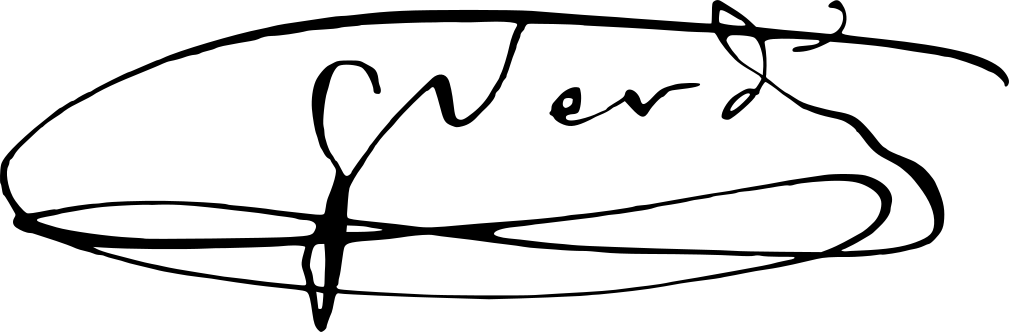
Giuseppe Verdi c. 1870
His name became an Italian political acronym — "Viva V.E.R.D.I." secretly meant "Viva Vittorio Emanuele Re D'Italia" during the unification movement.
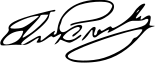
Elvis Presley c. 1960
Presley signed thousands of autographs for fans, but his handwriting shifted dramatically from his early career to the 1970s. Authentic signed photos sell for $5,000+.
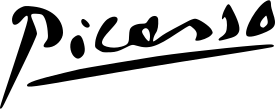
Pablo Picasso c. 1950
Legend has it he paid for meals by sketching on napkins — though experts consider the story apocryphal. His full baptismal name contains 23 words.

Frida Kahlo c. 1940
Her distinctive handwriting, often in bold strokes, appears in her illustrated diary — now one of the most famous artist journals in history.
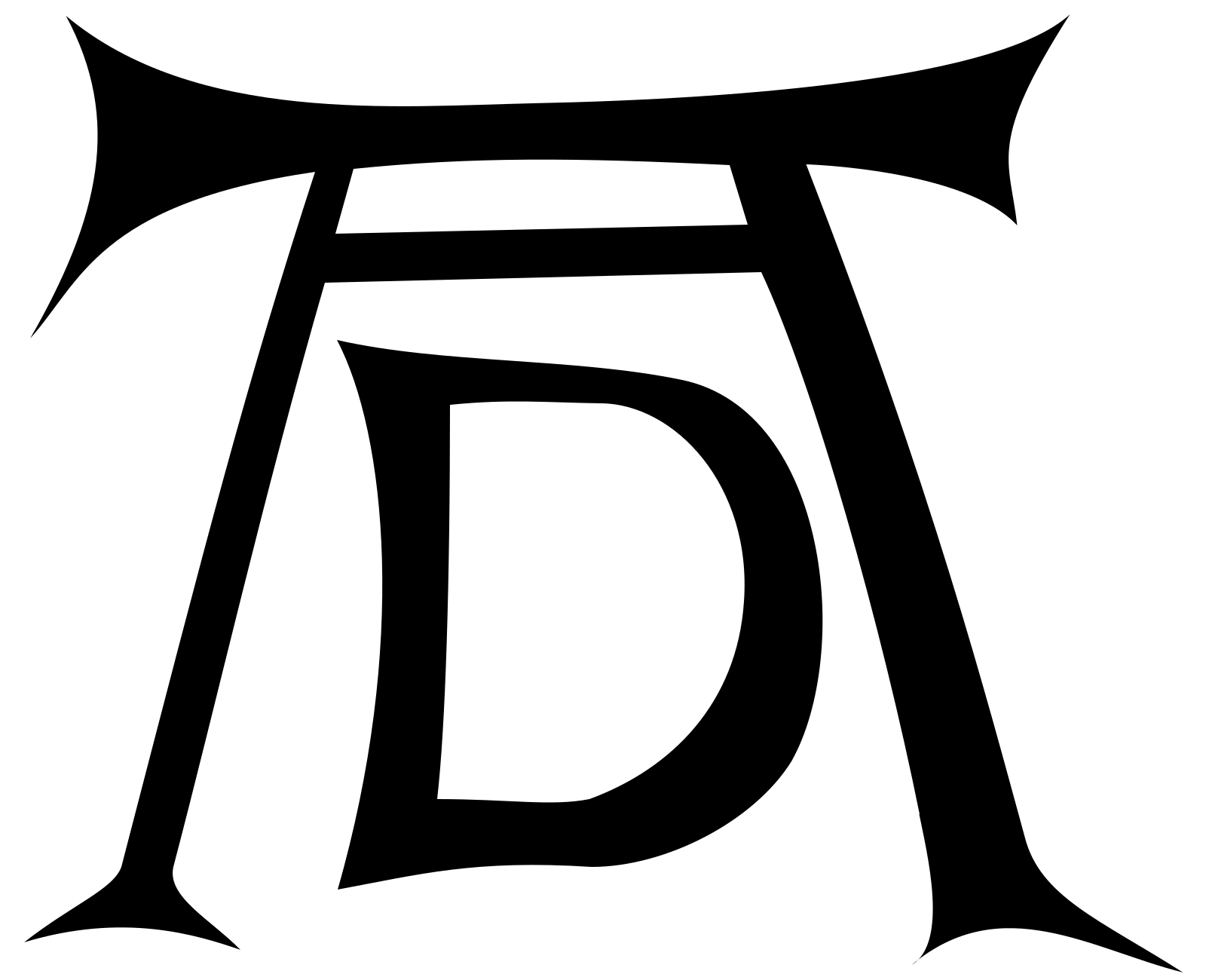
Albrecht Dürer c. 1500
Popularized the artist's monogram — his iconic "AD" mark became one of the first recognizable artist brands, and he even sued a forger over it.
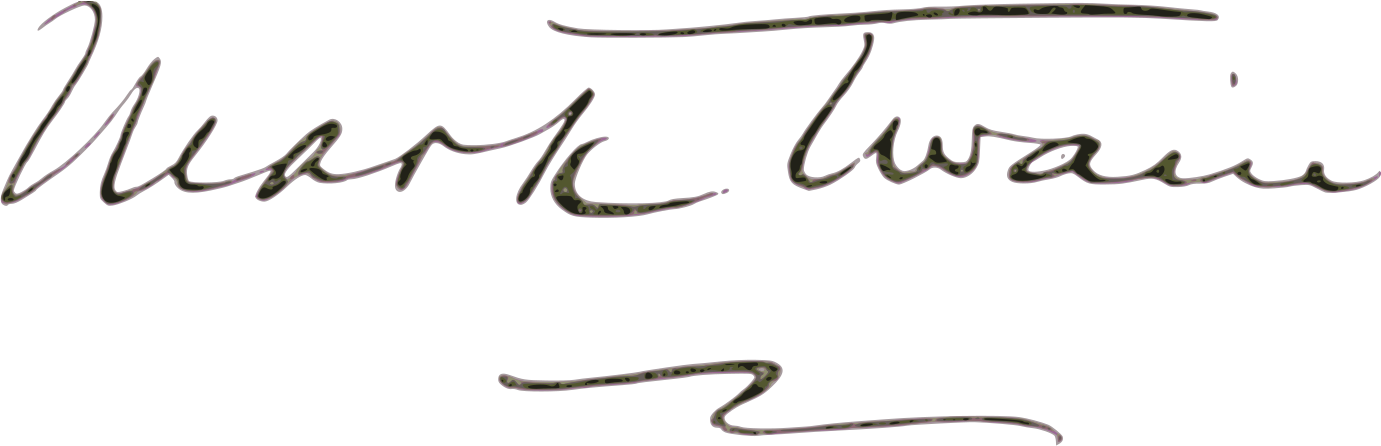
Mark Twain c. 1900
"Mark Twain" itself was a signature — a pen name borrowed from Mississippi River jargon meaning "two fathoms deep," safe water for a steamboat.
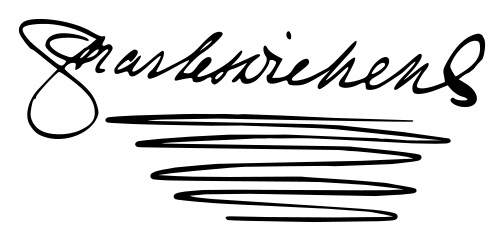
Charles Dickens c. 1860
His flamboyant signature featured elaborate underscoring. Dickens wrote 15 novels, all originally serialized — he was essentially a Victorian showrunner.
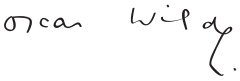
Oscar Wilde c. 1890
His flowing, theatrical penmanship matched his personality. Wilde's last words are disputed, but one version has him quipping about the wallpaper in his Paris hotel room.
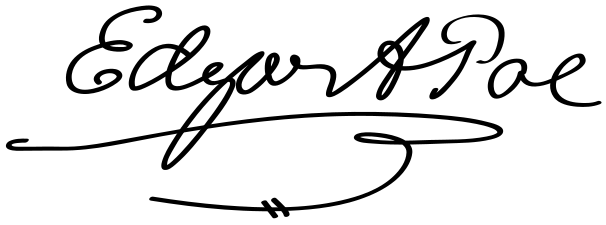
Edgar Allan Poe c. 1845
His small, precise handwriting belied the darkness of his stories. Poe's mother-in-law sold clipped signatures from his letters to make ends meet — making intact autograph letters a prized rarity.
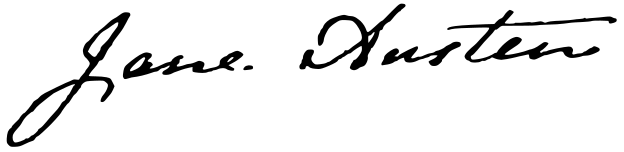
Jane Austen c. 1817
Her first novel was published anonymously as "By a Lady" — her name never appeared on a title page in her lifetime. Around 160 of her letters survive, but her signature remains a holy grail for collectors.
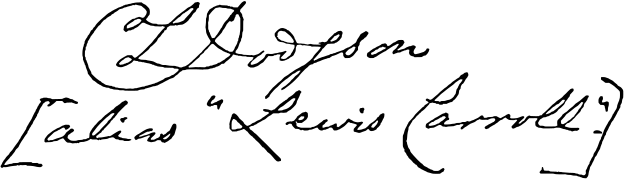
Lewis Carroll c. 1880
His real name was Charles Dodgson. He was a mathematics lecturer at Oxford who wrote "mirror writing" letters to child friends, readable only in a looking glass.
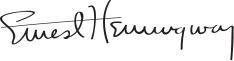
Ernest Hemingway c. 1950
Wrote standing up at a chest-high desk every morning. His stripped-down prose style revolutionized American fiction — no word wasted, including in his signature.

Abraham Lincoln 1863
His signature on the Emancipation Proclamation is one of history's most consequential autographs. After shaking hands for hours at a New Year's reception, he worried a trembling signature would look like doubt — so he signed it bold and firm.
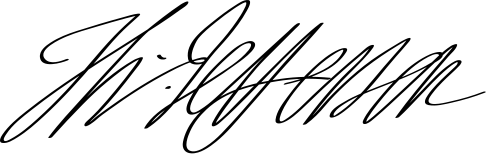
Thomas Jefferson 1776
He drafted the Declaration but never put "President" on his resume. Jefferson designed his own tombstone listing three achievements — and being leader of a nation wasn't one of them.
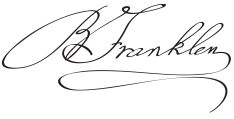
Benjamin Franklin c. 1780
The only Founding Father to sign all four founding documents: the Declaration, the Treaty of Paris, the Treaty of Alliance with France, and the Constitution.
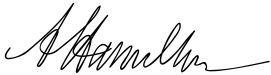
Alexander Hamilton c. 1790
As first Treasury Secretary, his signature appeared on early US currency. His handwriting was famously rapid — he wrote the majority of the Federalist Papers in just six months.
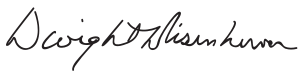
Dwight D. Eisenhower c. 1953
As Supreme Commander, his signature authorized D-Day. He also drafted a note accepting sole blame in case the invasion failed — then forgot it in his wallet for a month.
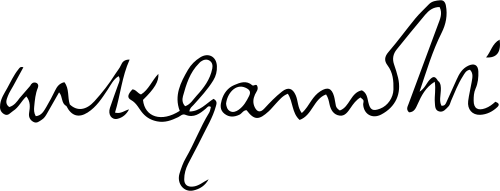
Mahatma Gandhi c. 1930
Gandhi wrote extensively — his collected works span 100 volumes. He corresponded with Tolstoy, Einstein, and even wrote to Hitler urging peace.
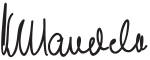
Nelson Mandela c. 1994
His signature became a symbol of freedom itself. During 27 years in prison, Mandela's handwriting remained remarkably steady and composed.
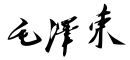
Mao Zedong c. 1950
A skilled calligrapher, Mao's brushwork is still displayed across China. His calligraphy for the People's Daily masthead has been used continuously since the paper's founding in 1948.
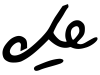
Che Guevara c. 1960
As president of Cuba's National Bank, he signed banknotes simply "Che" — a casual gesture of contempt for money itself, consistent with his push to abolish currency entirely.
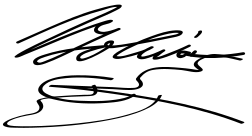
Simón Bolívar c. 1820
The "Liberator" freed six South American nations from Spanish rule. His sweeping, confident signature reflected his grand ambitions for continental unity.
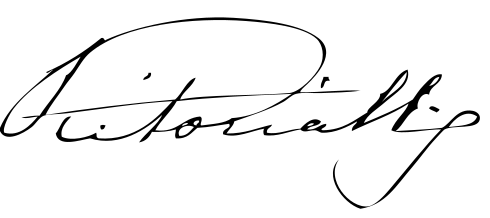
Queen Victoria c. 1880
Reigned for 63 years and signed countless state documents. Her journals span 122 volumes and nearly 70 years — an extraordinary record of the Victorian age.
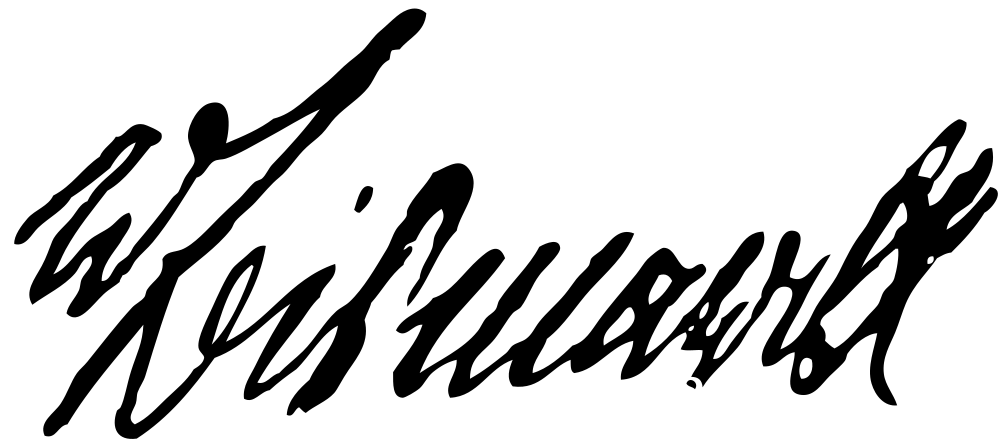
Otto von Bismarck c. 1871
The "Iron Chancellor" unified Germany through "blood and iron." His bold, angular signature reflected the decisiveness that reshaped European politics.
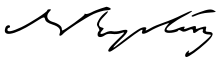
Napoleon III c. 1860
Nephew of Napoleon Bonaparte, he transformed Paris with wide boulevards and modern sewers. He cultivated his uncle's legacy in all things — even adopting the Napoleonic eagle as his imperial emblem.
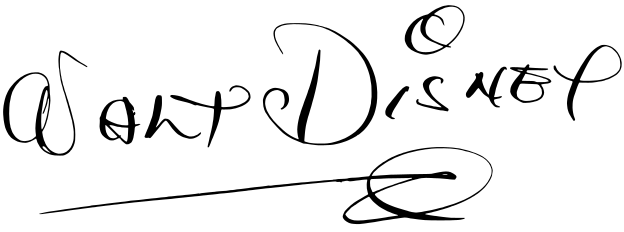
Walt Disney 1942
His stylized signature became the Disney company logo. Ironically, Disney rarely signed with the famous version — employees developed it, and he had trouble replicating it.
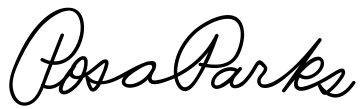
Rosa Parks c. 1960
Her quiet act of defiance on a Montgomery bus in 1955 catalyzed the civil rights movement. Congress later called her "the first lady of civil rights."
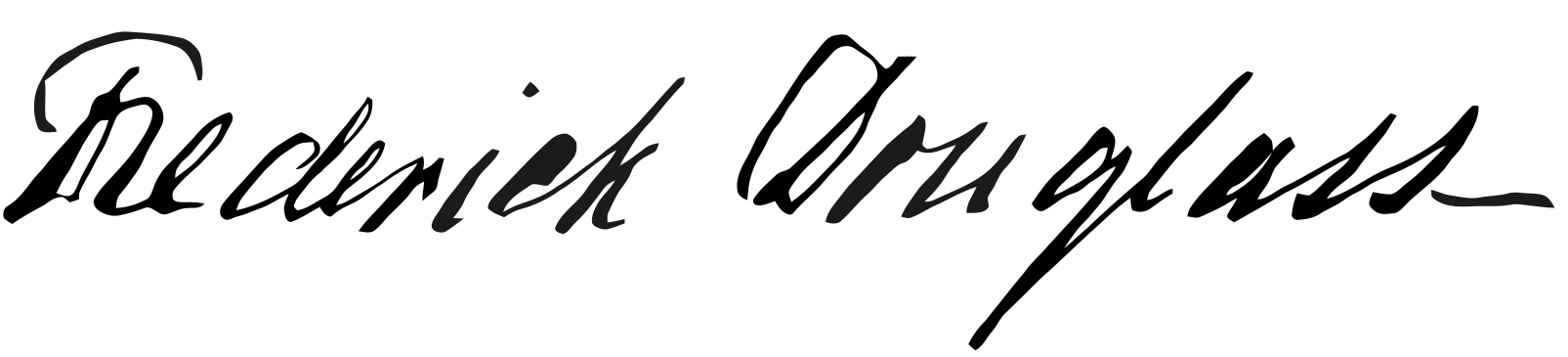
Frederick Douglass c. 1870
Taught himself to read after initial lessons from his enslaver's wife were forbidden, Douglass became the most photographed American of the 19th century — and one of its greatest orators.
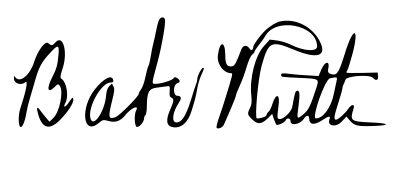
Babe Ruth c. 1930
His autograph is the most sought-after in sports history. A signed baseball can sell for over $100,000 — yet he's also the most forged name in the hobby, so authentication is everything.

Florence Nightingale c. 1860
The founder of modern nursing was also a pioneering statistician. Her detailed letters and reports — over 12,000 survive — revolutionized hospital sanitation.
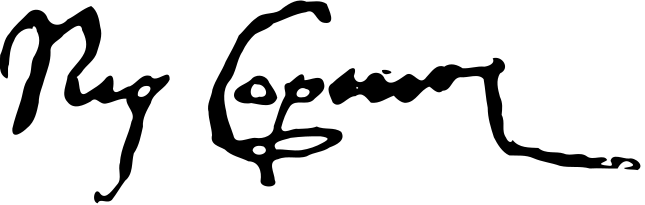
Nicolaus Copernicus c. 1530
Legend says he first held a printed copy of his heliocentric theory on the day he died. His signature on church documents is among the few surviving examples.
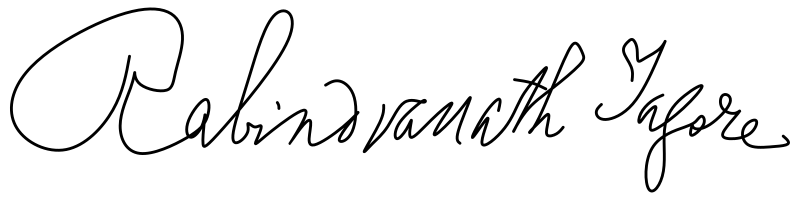
Rabindranath Tagore c. 1920
The first non-European Nobel laureate in literature. He composed the national anthems of two countries — India and Bangladesh.
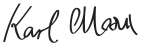
Karl Marx c. 1870
His notoriously illegible handwriting drove publishers mad. Engels was often the only person who could decipher his manuscripts for the printer.
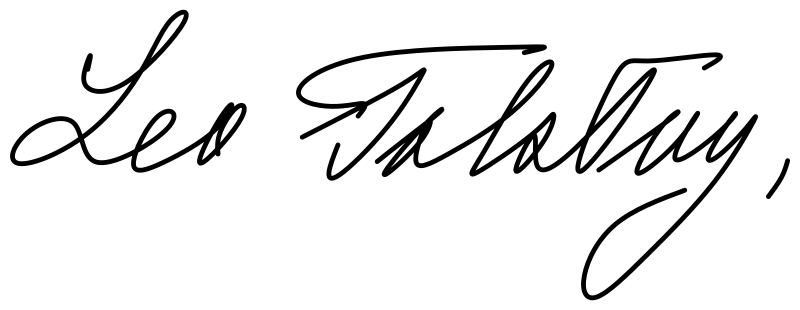
Leo Tolstoy c. 1900
His wife Sophia hand-copied War and Peace seven times as he revised it. Tolstoy renounced his own copyright late in life, wanting his works free for all.
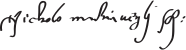
Niccolò Machiavelli c. 1510
The diplomat whose name became synonymous with cunning. "The Prince" was published posthumously — he originally wrote it as a job application to the Medici.
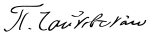
Pyotr Tchaikovsky c. 1885
Composed Swan Lake, The Nutcracker, and the 1812 Overture. His prolific correspondence — over 5,000 surviving letters — reveals a deeply sensitive artist.
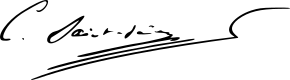
Camille Saint-Saëns c. 1890
A child prodigy who gave his first concert at age 10. Saint-Saëns forbade public performance of "The Carnival of the Animals" during his lifetime — he thought it too frivolous.
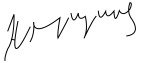
Nikita Khrushchev c. 1960
Famous for banging his shoe at the UN (though footage is disputed). As Soviet leader, his signature authorized both the Cuban Missile Crisis and the first human in space.
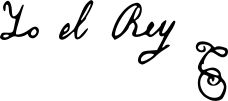
Ferdinand VII c. 1820
Spanish kings signed royal decrees "Yo el Rey" — literally "I, the King." Ferdinand VII, Spain's last absolutist monarch, clung to this formula even as constitutional government rose around him.
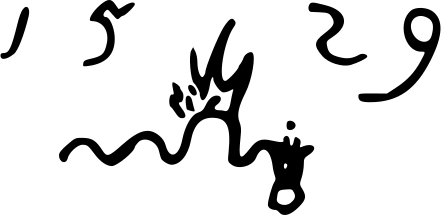
Lucas Cranach the Elder 1529
Instead of a signature, Cranach used a winged serpent as his personal mark — granted to him as a coat of arms by Elector Frederick the Wise of Saxony in 1508. His son inherited and continued using it, with lowered wings to distinguish his own work.
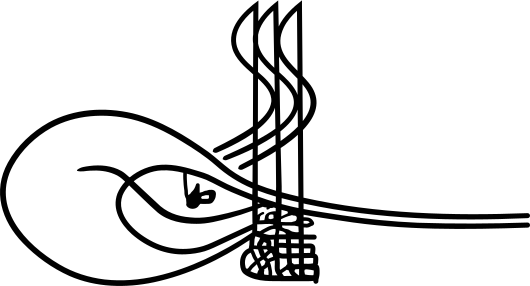
Suleiman the Magnificent c. 1550
Ottoman sultans didn't sign — they used a tughra, an elaborate calligraphic monogram. Suleiman's towering tughra appeared on every imperial decree and is considered one of the most beautiful examples of Islamic calligraphy.
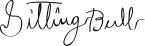
Sitting Bull c. 1880
The Hunkpapa Lakota leader drew a small pictograph of a sitting buffalo as his mark — a literal visual translation of his name. He later learned to write his name in Latin script.
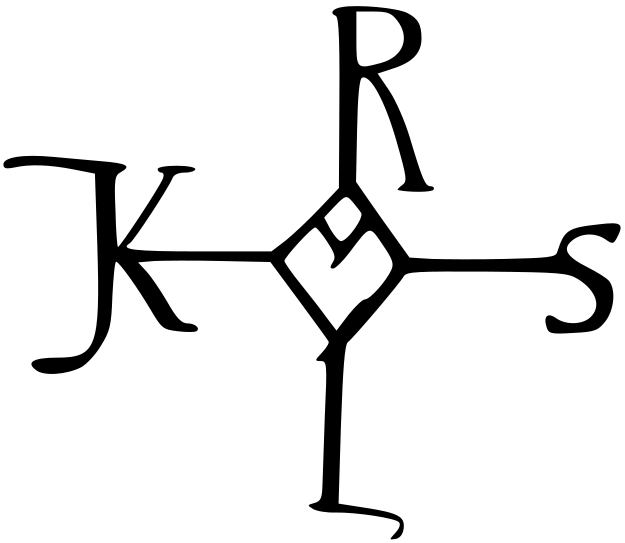
Charlemagne c. 800
The Emperor of the Romans could likely read but never learned to write. He "signed" documents with a cross-shaped monogram — the letters K-R-L-S (Karolus) at each arm, vowels in the center. A scribe drew the letters; Charlemagne added the cross strokes himself.
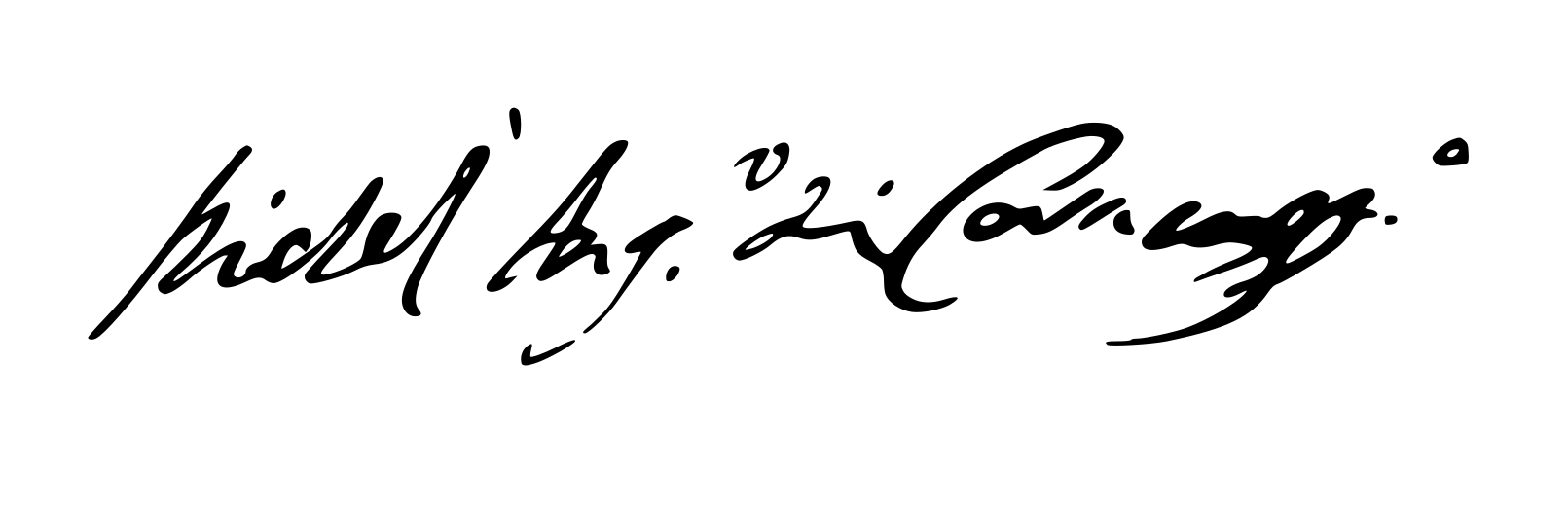
Caravaggio 1600
He almost never signed his work — only one confirmed painting bears his signature: "The Beheading of Saint John the Baptist," where he signed in the painted blood flowing from the saint's neck.
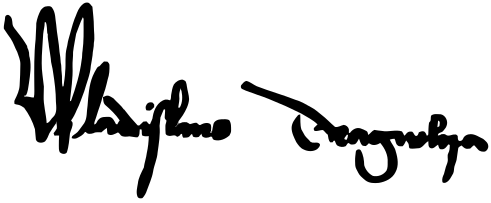
Vlad Dracula c. 1460
The real Dracula signed diplomatic letters in elegant Latin script as "Wladislaus Dragwlya." His surviving correspondence is preserved in Romanian and Hungarian archives.
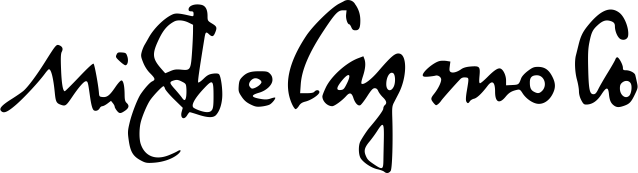
Michelangelo c. 1500
He signed only one sculpture — the Pietà — after overhearing someone credit it to a rival. He carved "MICHAELA[N]GELUS BONAROTUS FLORENT[INUS] FACIEBA[T]" across the Madonna's sash in a fit of pride, and reportedly regretted it afterward.
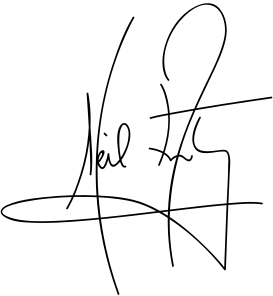
Neil Armstrong c. 1969
Before the Apollo 11 mission, the crew couldn't get life insurance. Instead, they signed hundreds of postal covers so their families could sell the autographs if they didn't return. They all made it back.
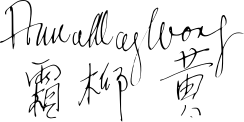
Anna May Wong c. 1930
The first Chinese-American Hollywood star often signed in both English and Chinese characters. In 2022 she became the first Asian American to appear on US currency — the quarter dollar.
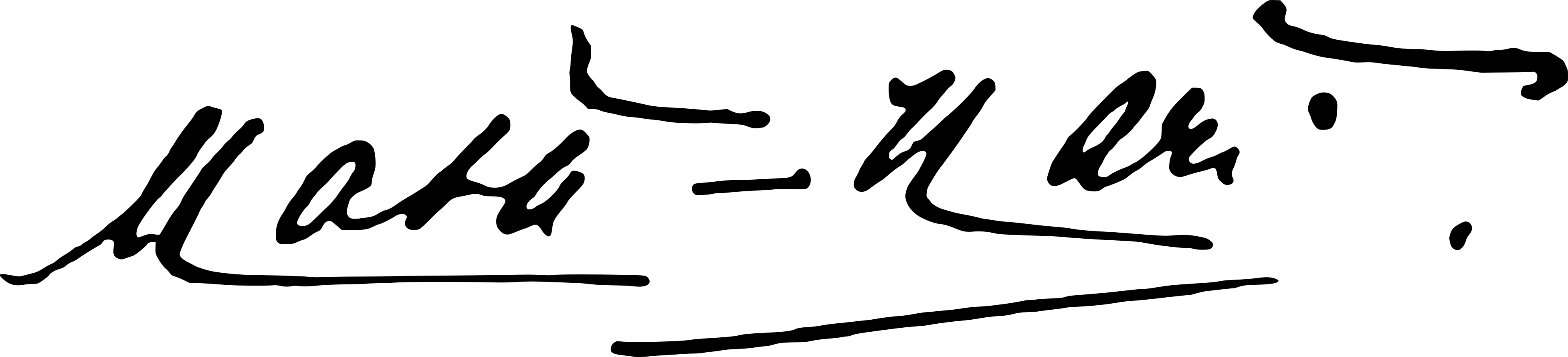
Mata Hari c. 1910
Born Margaretha Zelle, she invented the exotic stage name "Mata Hari" — Malay for "eye of the day" (the sun). Convicted of espionage in World War I, she reportedly refused a blindfold before her execution by firing squad.
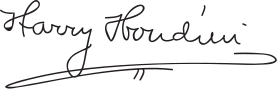
Harry Houdini c. 1920
Born Erik Weisz in Budapest, he adopted "Houdini" as a tribute to French magician Jean-Eugène Robert-Houdin. He claimed to be born April 6 in Appleton, Wisconsin — but he was actually born March 24 in Budapest, Hungary.
How to Design Your Signature
Start by writing your full name in cursive a few times. Don't think about style yet — just get comfortable with the flow of the letters. After a few rounds, you'll notice which letters feel natural to connect and which ones you want to emphasize. Most signatures evolve from here: a stylized version of your actual name, not something invented from scratch.
Pick one letter to anchor the whole thing. Usually it's your first or last initial. Make it a little larger, a little more expressive — that's the letter people's eyes land on first. Everything else can stay loose around it. This focal point is what gives a signature its character.
Now speed up. The best signatures are fast to write. As you practice at speed, you'll naturally start dropping letters, merging strokes, cutting corners. Your signature finds itself this way. The parts you skip become just as distinctive as the parts you keep.
Add one flourish. An underline, a loop on a descender, a swooping tail off the last letter. One is elegant. Two starts looking busy. The flourish also makes your signature harder to forge, since it's a motion that becomes muscle memory for you but is tough for someone else to replicate.
Practice until signing feels automatic — like you're not thinking about individual letters anymore. Fifty repetitions usually gets you there. You'll settle into a natural rhythm, and the slight variations between each one are what make a signature look human rather than mechanical.
One last thing: consider where you'll use it. Legal documents and contracts need a signature that's at least partially legible — someone should be able to connect it to your printed name. For everything else, go as abstract as you want.
Try your ownFrequently Asked Questions
Is this really free?
Yes. No account, no trial, no watermark. Draw and download as many times as you want.
Is my signature stored anywhere?
No. Everything happens in your browser. Your signature never leaves your device — there's no server, no upload, no tracking.
What's the difference between PNG and SVG?
PNG is a standard image format that works everywhere — paste it into Word, Google Docs, emails, or PDFs. SVG is a vector format that stays perfectly sharp at any size, making it ideal for print or high-resolution use.
Can I use this on my phone?
Absolutely. The canvas is touch-optimized — draw with your finger or stylus. It works on any modern phone or tablet browser.
How do I create a digital signature?
Draw your signature on the canvas above using your mouse, finger, or stylus. The pen is velocity-sensitive — move slowly for thick strokes and quickly for thin ones. When you're happy with it, tap PNG or SVG to download. That's it — no account needed.
Is an online signature legally binding?
In most countries, yes. Electronic signatures are legally recognized under laws like the U.S. ESIGN Act and the EU eIDAS regulation for everyday documents — contracts, agreements, forms, and more. For highly regulated documents like wills or real estate transfers, check your local requirements.
How do I add my signature to a PDF?
Export your signature as a transparent PNG, then open your PDF in any editor — Adobe Acrobat, Preview on Mac, or a free tool like Smallpdf. Use the "Add Image" or "Insert Signature" feature to place it on your document. The transparent background means no white box.
What's the best free signature maker?
We're biased, but Signatory is built to do one thing well — let you draw a natural signature and export it instantly. No account, no watermark, no upsell. Most alternatives are SaaS funnels that gate features behind paid plans.
How do I draw my signature on my phone?
Open Signatory in your phone's browser and turn your phone sideways for a wider canvas. Draw with your finger or stylus — the pen is pressure- and velocity-sensitive, so it feels natural. Tap Save to download, or Share on mobile to send it directly.